Log a Dose
Recording each injection in GLPea keeps your tracking accurate and helps maintain proper site rotation. Here's how to log a dose.
Step-by-Step Guide
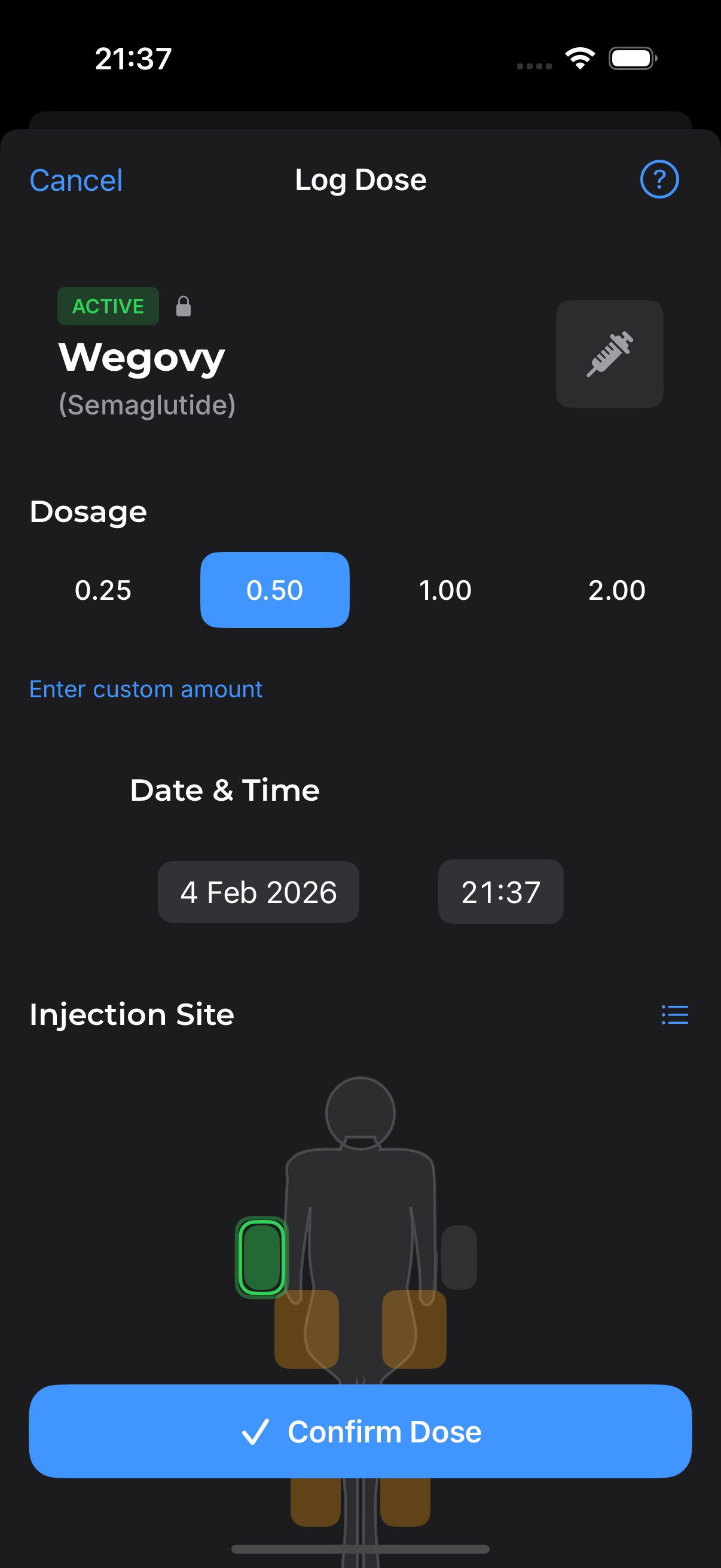
1. Open the Log Dose Screen
From the dashboard, tap the Log Dose button. You can also:
- Tap the notification reminder (on injection day)
- Use the Apple Watch app
- Say "Hey Siri, log my GLPea dose"
2. Select Your Injection Site
You'll see a body map showing available injection areas:
Front View:
- Left abdomen
- Right abdomen
- Left thigh
- Right thigh
Back View (swipe or tap):
- Left upper arm
- Right upper arm
Tap the area where you injected. GLPea highlights your previous injection site to help you rotate.
3. Confirm the Details
Before saving, verify:
- Date and time - Defaults to now, tap to change
- Dose - Shows your current protocol dose
- Site - The area you selected
4. Add Notes (Optional)
Tap "Add Note" to record anything relevant:
- How you're feeling
- If you noticed anything unusual
- Reminder notes for next time
5. Save Your Log
Tap Log Dose to save. You'll see a confirmation and your countdown will update.
Logging Options
Log for a Different Time
If you're logging after the fact:
- On the confirmation screen, tap the date/time
- Select the actual date and time you injected
- Continue with normal logging
Log for a Different Dose
If your doctor changed your dose mid-week:
- Go to Settings → Edit Protocol first
- Update your dose
- Then log the dose as normal
The new dose will be recorded for this and future logs.
Injection Site Selection
Recommended Areas
GLP-1 medications are typically injected in:
| Area | Notes |
|---|---|
| Abdomen | Most popular, avoid 2 inches around navel |
| Thigh | Front of thigh, easy to reach |
| Upper arm | Back of arm, may need help reaching |
Site Rotation Tips
- Don't inject within 1 inch of your previous site
- Alternate between left and right sides
- Move to a different body area each week
- GLPea shows your last site to help you remember
Detailed site rotation guide →
After Logging
Once you log a dose:
- Countdown updates - Shows time until your next dose
- History records - Entry appears in your dose history
- Site tracking - Body map remembers this location
- Streak updates - Consecutive weeks counter increases
Editing a Logged Dose
Made a mistake? Here's how to fix it:
- Go to History tab
- Find the dose entry
- Tap it to view details
- Tap Edit to change date, site, or notes
- Or tap Delete to remove entirely
Troubleshooting
"Log Dose" Button Not Responding
- Make sure you're signed in
- Check your internet connection
- Try force-closing and reopening the app
Wrong Dose Amount Showing
Your logged dose reflects your current protocol. To change it:
- Go to Settings → Edit Protocol
- Update your dose
- Future logs will use the new amount
Accidentally Logged Twice
Go to History, find the duplicate entry, and delete it. Your countdown will recalculate.