Sync Problems
GLPea syncs data between your devices and the cloud. If your data isn't appearing where you expect, here's how to troubleshoot.
How Syncing Works
What Gets Synced
- Dose logs
- Weight entries
- Water intake
- Symptoms
- Protocol settings
- Account preferences
Where Data Syncs
| Device | Syncs To |
|---|---|
| iPhone | Cloud servers |
| Apple Watch | iPhone (then cloud) |
| New device | Cloud to device |
When Syncing Happens
- On change: When you log something
- On open: When you launch the app
- Periodically: Background refresh (if enabled)
Common Sync Issues
Data from iPhone Not on Watch
Check Connection:
- Open Control Center on Watch
- Look for phone icon (indicates connection)
- If disconnected, bring devices closer together
Force Sync:
- Open GLPea on iPhone
- Open GLPea on Watch
- Wait 30 seconds
Restart Devices:
- Restart Apple Watch
- Restart iPhone
- Open GLPea on both
Data from Watch Not on iPhone
Open the iPhone App: Data syncs when GLPea is active on iPhone. Open the app and wait.
Check Connection: Ensure Watch and iPhone are connected via Bluetooth.
Manual Refresh: On iPhone, pull down on the dashboard to refresh.
Data from Old iPhone Not on New iPhone
Sign In with Same Account:
- On new iPhone, sign in with your GLPea account
- Wait for data to download from cloud
- This may take a few minutes for large histories
Check Account: Verify you're using the same email/Apple ID as before.
Changes Not Saving
Check Internet:
- No connection = data saved locally only
- Sync happens when connection returns
- Try toggling Airplane Mode
App in Background:
- Bring GLPea to foreground
- Wait for sync indicator
- Keep app open until sync completes
Sync Indicators
On iPhone
- Spinner: Sync in progress
- Checkmark: Sync complete
- Cloud with X: Sync failed (will retry)
On Watch
- Data appears = sync worked
- Old data = sync pending
- Open iPhone app to force sync
Troubleshooting Steps
Step 1: Check Internet Connection
- Open Safari and load a webpage
- If it fails, fix your connection first
- Try WiFi and cellular both
Step 2: Force Close and Reopen
- On iPhone: Swipe up, swipe GLPea away, reopen
- On Watch: Press side button, swipe GLPea away, reopen
- Wait for sync
Step 3: Check Account
Verify you're signed into the correct account:
- Go to Settings
- Look at the email shown
- If wrong, sign out and sign in to correct account
Step 4: Restart Devices
- Restart iPhone
- Restart Apple Watch
- Open GLPea on iPhone first, then Watch
Step 5: Check for Updates
- Update GLPea from App Store
- Update iOS if available
- Update watchOS if applicable
Step 6: Reinstall App
As a last resort:
- Note that reinstalling won't lose data (it's in the cloud)
- Delete GLPea from iPhone
- Reinstall from App Store
- Sign in with your account
- Data will sync from cloud
Apple Health Sync
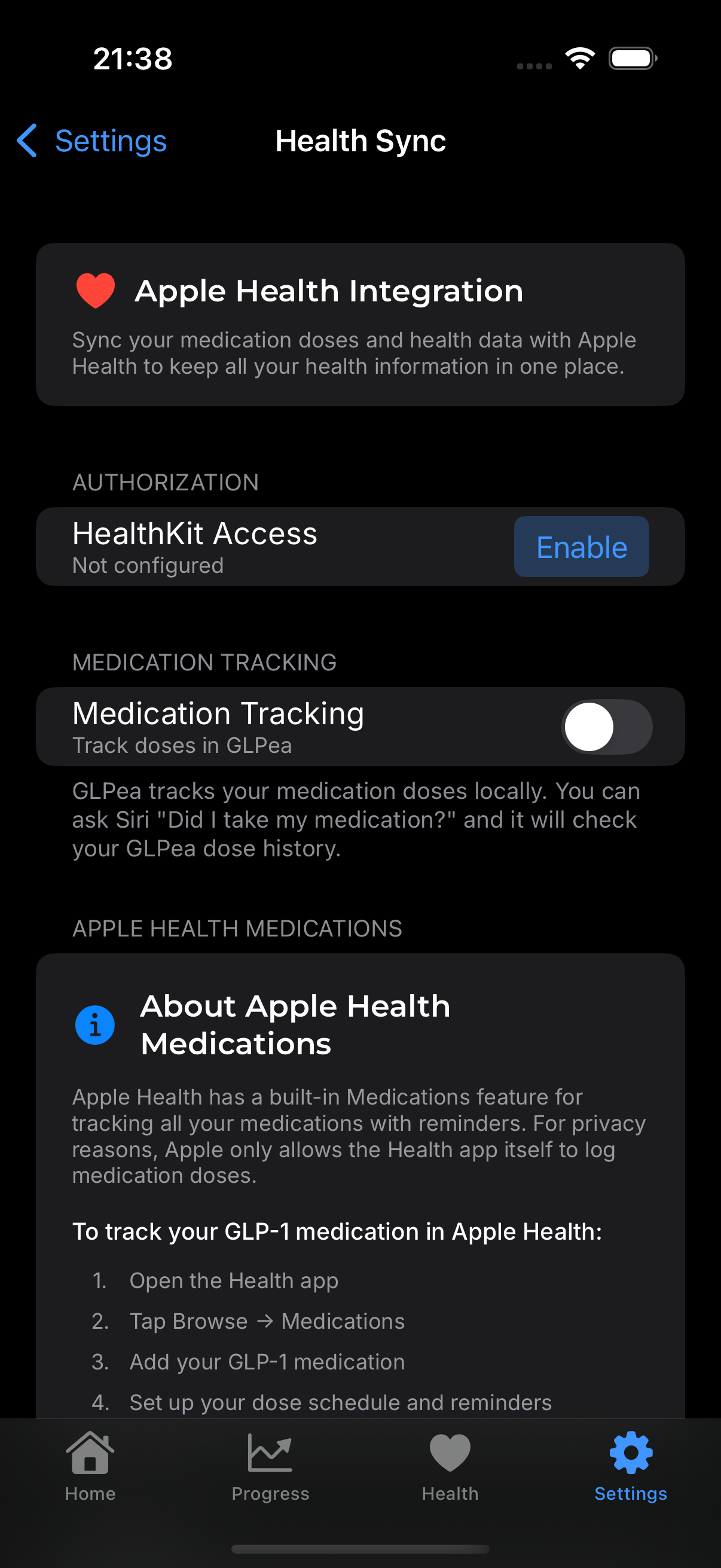
Separate from device-to-device sync, Apple Health integration has its own settings.
Health Data Not Syncing
- Go to Settings → Health Sync
- Verify the toggles are ON for data you want
- Check iPhone Settings → Health → GLPea for permissions
Duplicate Weight Entries
If you log in GLPea AND have a smart scale:
- Check if both are writing to Apple Health
- GLPea filters duplicates when importing
- You may need to disable one source
Background App Refresh
For better sync when you're not actively using GLPea:
- Go to iPhone Settings → General → Background App Refresh
- Ensure it's ON globally
- Ensure GLPea is ON in the list
Battery Consideration
Background refresh uses minimal battery but can be disabled if you prefer manual sync only.
Conflict Resolution
If the same entry is edited on multiple devices:
- Most recent wins: The last change is kept
- Rare occurrence: This usually only happens if editing while offline
- Check history: Verify the correct version saved
Still Having Sync Issues?
If nothing above helps:
- Note what data is missing
- Screenshot the issue if possible
- Contact support with details